
Proper email configuration in Sage 50 allows businesses to send invoices, purchase orders, statements, and reports directly from the software. Instead of downloading documents and attaching them manually, Sage 50 enables users to email files instantly from within the system.
Configuring email settings in Sage 50 correctly improves communication with customers and vendors while also saving time in daily accounting operations. This guide explains how Sage 50 email setup works, the available email methods, and the steps required to configure it successfully.
Why Email Setup is Important in Sage 50
Email functionality in Sage 50 helps businesses streamline document sharing and maintain professional communication with clients. Once email settings are configured, users can send important accounting documents without leaving the software.
Some major benefits include:
Send invoices and purchase orders directly to customers
Share financial reports and statements instantly
Reduce manual steps when sending documents
Maintain professional communication with clients and vendors
Improve overall workflow efficiency in accounting tasks
By enabling email integration, businesses can simplify routine communication and keep records organized.
Email Options Available in Sage 50
Sage 50 provides multiple email configuration options depending on how your organization manages emails.
Outlook (MAPI) Email Method
This option uses Microsoft Outlook installed on your system. When sending an email from Sage 50, Outlook automatically opens with the message and attachment prepared.
Requirements for this method include:
Microsoft Outlook installed on the computer
Outlook configured as the default email client
Proper MAPI settings enabled
This option is commonly used in offices where Outlook is already the primary email platform.
SMTP Email Method
SMTP allows Sage 50 to send emails directly through a mail server without opening an external email client.
To configure SMTP email, you typically need:
SMTP server address
Port number
Email address and password
Encryption settings (SSL or TLS)
This method is useful for businesses that want automated email sending without relying on Outlook.
Steps to Configure Email Setup in Sage 50
Follow these steps to configure email settings in Sage 50.
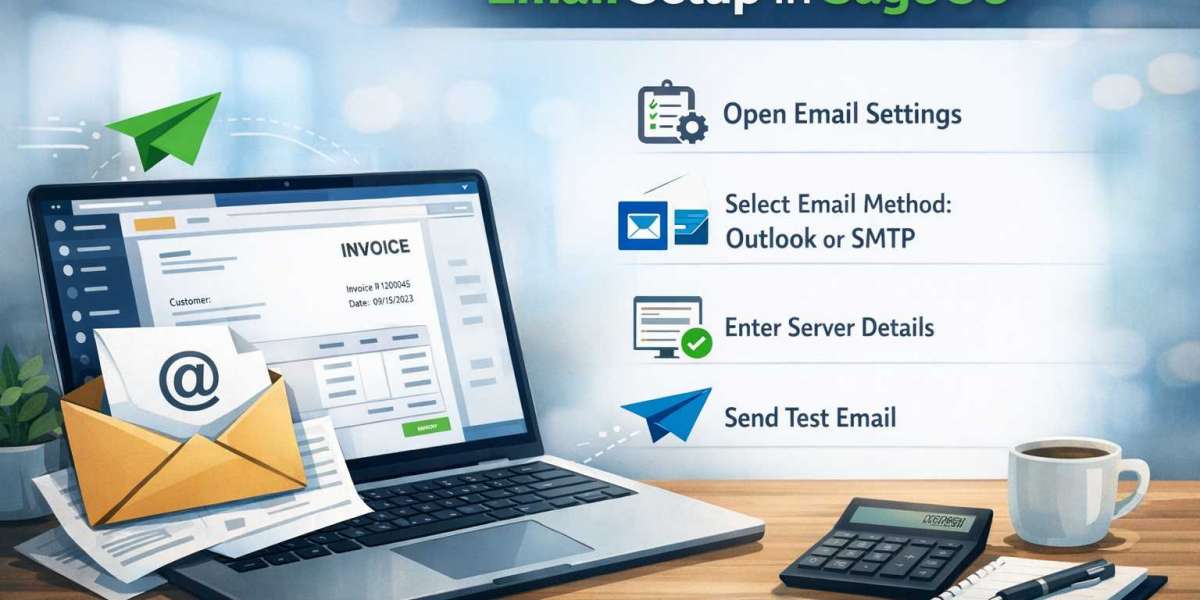
Step 1: Open Company Email Settings
First, launch Sage 50 and open your company file.
Navigate to:
Maintain → Company Information → Email Settings
This section allows you to control how Sage 50 sends emails.
Step 2: Choose Your Email Method
In the email settings window, select the preferred method:
Outlook (MAPI)
SMTP Email
Choose the option that matches your organization’s email environment.
Step 3: Enter SMTP Details (If Applicable)
If you select SMTP, enter the required email server information such as:
SMTP server name
Port number
Email address used for sending messages
Authentication credentials
Encryption method
These settings enable Sage 50 to connect securely to your email server.
Step 4: Customize Default Email Message
Sage 50 allows users to create default email templates. You can define:
Default subject line
Message body
Signature information
This ensures consistent communication whenever invoices or statements are sent.
Step 5: Test Email Configuration
After saving your settings, send a test email to verify that the configuration works correctly. Testing confirms that the email server connection and attachments are functioning properly.
Common Email Setup Issues in Sage 50
Users may sometimes encounter problems when configuring email settings. Common issues include:
Incorrect SMTP server information
Outlook not set as the default email client
Email authentication errors
Firewall or antivirus blocking the connection
Reviewing email settings and verifying server details usually resolves these issues quickly.
Best Practices for Sage 50 Email Settings
To ensure reliable email performance in Sage 50, consider the following best practices:
Keep Sage 50 updated to the latest version
Verify SMTP credentials with your email provider
Ensure Outlook is properly configured if using MAPI
Test email functionality regularly
Maintain a stable internet connection
Following these practices helps prevent email errors and ensures consistent document delivery.
Conclusion
Setting up email in Sage 50 is an important step for improving communication and efficiency in accounting workflows. With the correct configuration, businesses can send invoices, statements, and reports directly from the software. Whether using Outlook integration or SMTP email settings, proper setup ensures reliable email delivery and smoother financial operations.